

Images travel without their context. Google’s image metadata documentation (last updated 10 December 2025 as we read it) describes how a creator, a credit line and a license can travel with them.
Best for: photographers, stock libraries, publishers with original photography and brands with image libraries.
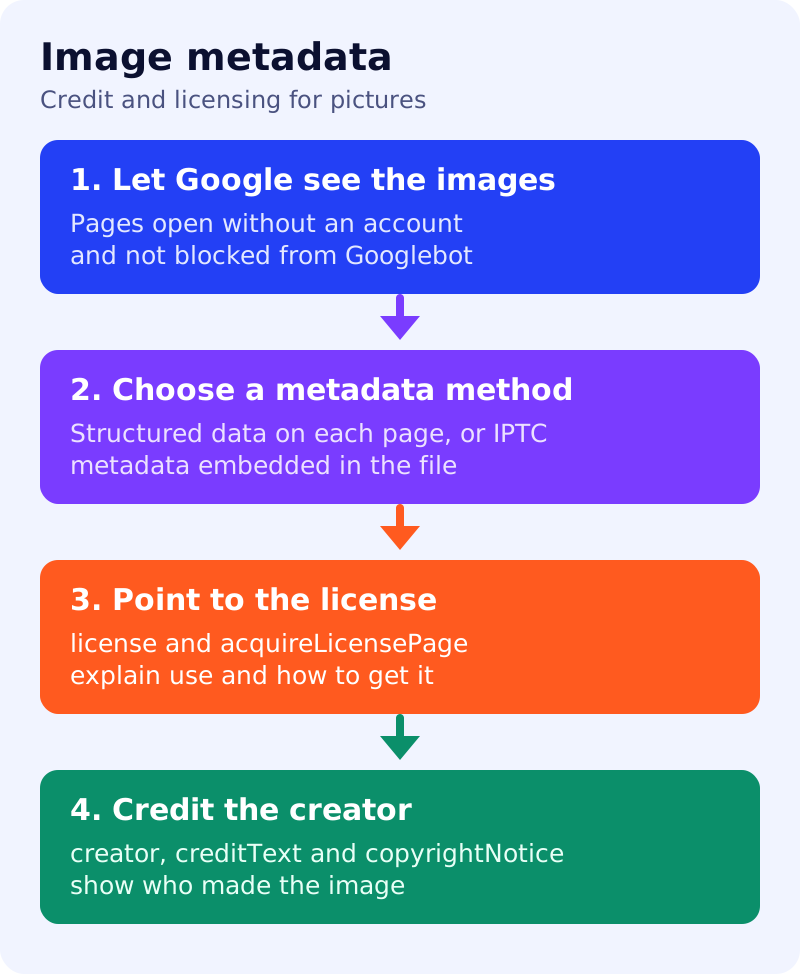
What Google says
- Image metadata lets Google Images show more detail about an image: who the creator is, how people can use it and credit information. Licensing information can make an image eligible for the Licensable badge, with a link to the license and more detail on use.
- Prepare first: people must be able to view the pages containing images without needing an account, Googlebot must be able to access them, and the image SEO best practices apply.
- Add either structured data or IPTC photo metadata. You only need one form to be eligible for enhancements such as the Licensable badge.
- Structured data goes with each instance of an image, on every page where it appears, even if it is the same image. IPTC photo metadata is embedded in the file, travels with it and only needs embedding once.
- If both are used and they conflict, Google uses the structured data.
licenseis a URL to a page describing the license that governs use (the IPTC equivalent is Web Statement of Rights).acquireLicensePageis a URL showing where a user can find out how to license the image (IPTC: Licensor URL).- For structured data,
contentUrlis required (Google also supportsurlif it is missing, though less precisely). Recommended properties includelicense,acquireLicensePage,creator,creditTextandcopyrightNotice. - Submit a sitemap, and allow time for recrawling.
What to do: step by step
| Step | Owner | Time | How to check | Done when |
|---|---|---|---|---|
| 1. Choose where images live | Content | 30 min | Do pages load without a login? | No gated image pages |
| 2. Choose the method | Developer, photo editor | 30 min | Structured data per page, or IPTC in files | One method per image set |
| 3. Write the license page | Legal | 2 hours | One plain page explaining permitted use | A public URL exists |
| 4. Write the “how to license” page | Sales, legal | 1 hour | Contact or checkout page | A public URL exists |
| 5. Add the fields | Developer | 2 hours | contentUrl, license, acquireLicensePage, creator, creditText, copyrightNotice | Present on ten sample images |
| 6. Validate and request recrawl | SEO | 30 min | Rich Results Test, URL Inspection, sitemap | Samples show correct metadata |
| 7. Keep metadata consistent | Photo editor | Ongoing | No conflicting IPTC and structured data | A process note exists |
Common mistakes
- Putting a license on images you do not own.
- Adding IPTC data that conflicts with page markup. Google uses the structured data.
- Marking only the first page where an image appears.
- Forgetting that a login wall blocks Google. See control what you share.
Related: Google Image SEO best practices and Discover images. Eligibility for the badge is not a guarantee that it will show.