

How to Verify Your Business on ChatGPT: Step-by-Step Guide
If you own a business, you may have started asking a new question: how do I verify my business on ChatGPT?
OpenAI has introduced Business Hub, a place where eligible businesses can claim and manage their business information in ChatGPT. Once a business is claimed and the required checks are completed, its authorised representative can update details and, where eligible, access business insights and other features.
The process is not identical for every company. An online business with a website may be able to add its business if it is not already listed. A physical store, restaurant or local service business follows a more restricted process under OpenAI’s current guidance.
This guide explains how to start, which verification methods may appear, what happens after you submit a claim, and where the process differs for online and physical businesses.
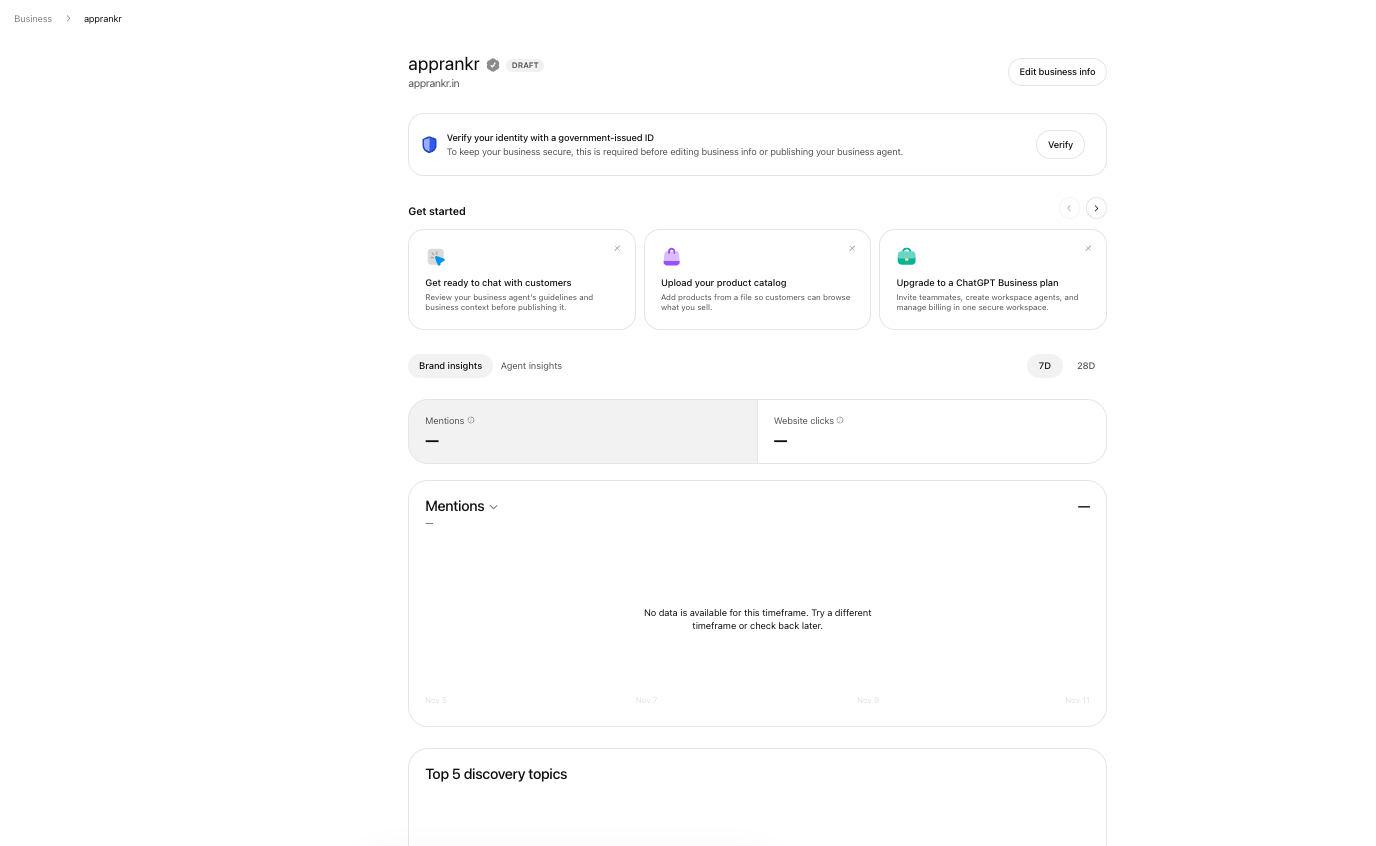
The Business Hub dashboard provides access to your claimed business profile and its available management tools.
Important: OpenAI controls eligibility and verification. The options shown in your Business Hub account are the ones that apply to your business. A claim does not guarantee a profile, a recommendation or a higher position in ChatGPT answers.
What does business verification on ChatGPT mean?
Business verification is the process of confirming that you own a business or are authorised to manage its profile.
OpenAI’s Business Hub allows eligible businesses to claim a listing, provide accurate information and manage selected details. A claimed profile is not the same as a fully verified identity.
There are two stages to understand:
- Claim verification: You prove that you are authorised to manage the business. OpenAI may offer a business phone, business email, website domain or Shopify verification method.
- Identity verification: After the claim is approved, OpenAI may require identity verification through Persona before you can publish changes, view insights, connect a product feed or create an eligible Business Agent.
OpenAI says a blue verified badge appears after Persona identity verification is approved. Simply submitting a claim does not automatically give the profile that badge.
Before you start: identify which type of business you have
The correct route depends on how your business operates.
| Your business | What to expect |
|---|---|
| Online business with a website and no customer facing premises | If eligible, you may be able to claim an existing listing or add your business |
| Ecommerce store using Shopify | Shopify can be offered as a verification and connection route |
| Physical shop, restaurant or local business | OpenAI currently says local stores and restaurants can claim only an existing US listing |
| Business outside the United States with a physical location | Check the current Business Hub eligibility and options. Do not assume that a local listing can be created or claimed |
| Company with an OpenAI Enterprise relationship or advertising account | OpenAI says you can work with your OpenAI representative |
If you operate only online, read our detailed guide to verifying an online business on ChatGPT without a physical store.
If customers visit your shop, office, clinic or restaurant, read how to verify a physical business on ChatGPT.
Step 1: Open ChatGPT Business Hub
Sign in to the ChatGPT account you want to use to manage your business.
Open Business Hub from the ChatGPT sidebar. You can also start from OpenAI’s Businesses in ChatGPT page.
Choose the option to claim your business or add a business, depending on what the interface offers.
Use an account that the business owner or authorised representative can continue to access. Avoid starting the process from an employee’s personal account if that person will not be responsible for managing the business.
Step 2: Search for your business
Search using the business’s actual name.
If a matching listing appears, open it and check the details carefully. Confirm that it is the correct company and not another business with a similar name.
If you cannot find the business, the next step depends on the business type. OpenAI’s Help Center says an eligible online business may see an option to add a business. Local stores and restaurants can currently claim only an existing US listing.
Do not create a duplicate listing just because the first search did not show the result you expected. Check spelling, brand names and the website associated with the business before proceeding.
Step 3: Select the verification method offered
After selecting the correct business, ChatGPT will show the verification methods available for that claim.
OpenAI currently documents these possible methods:
Option A: Verify using your business phone
- Select Business phone if it appears.
- Choose SMS or an automated phone call.
- Select Get code.
- Enter the code sent to the number shown in the verification flow.
Use a number that the business controls and can access. A personal number should not be used unless it is genuinely the business contact number and the interface accepts it.
Option B: Verify using your business email
- Select Business email.
- Select Get code.
- Open the mailbox associated with your business.
- Enter the code sent by OpenAI.
Use an email address that clearly belongs to the business. If the verification screen specifies an address or domain, follow that requirement exactly.
Option C: Verify using your website domain
This option is especially relevant to businesses that operate through a website.
- Select Website domain in the verification flow.
- ChatGPT will display a DNS TXT record.
- Sign in to the service that manages your domain’s DNS.
- Add a new TXT record using the exact type, host or name, and value shown by ChatGPT.
- Save the DNS record.
- Return to ChatGPT and select Verify domain.
- Follow any remaining instructions.
A DNS TXT record is a small piece of text stored in your domain’s DNS settings. It helps OpenAI check that you control the domain.
Do not copy a sample TXT value from another website or use a value from an unrelated OpenAI verification process. Each claim can have its own record value. Copy the exact information generated in your Business Hub session.
DNS changes may take time to become visible. If verification does not work immediately, wait and try again rather than repeatedly creating different records.
Option D: Verify through Shopify
If you operate an eligible Shopify store and the Shopify option appears:
- Select Shopify store.
- Choose Connect Shopify.
- Review the permissions requested.
- Select the option to log in to Shopify.
- Sign in to the store associated with the business.
- Follow the prompts to complete the connection.
OpenAI says Shopify merchants can connect through Business Hub or the Shopify admin. The available Shopify flow may depend on the store and its eligibility.
Step 4: Submit the claim and wait for OpenAI’s decision
After completing the selected verification method, submit the claim.
OpenAI reviews the request and sends an email with its decision or a request for more information. The claim may remain under review while the checks are completed.
If the interface provides a way to cancel the claim, use it only if you no longer want to continue.
If the listing is locked or you cannot access it, OpenAI’s Help Center says to use the Contact support option shown in the flow.
Step 5: Complete identity verification with Persona
Claim verification and identity verification are not the same thing.
After the claim is approved, OpenAI may ask you to complete identity verification through Persona. This additional step is required before certain actions, including publishing business information changes, viewing insights, connecting a product feed or creating an eligible Business Agent.
The Persona process may ask for a government issued identity document, business registration information and proof that you are authorised to represent the business.
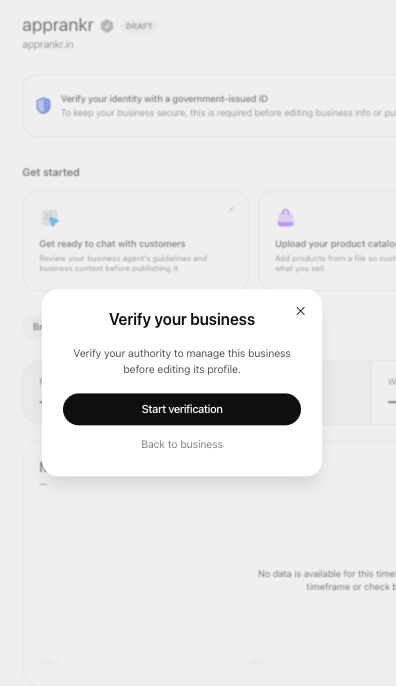
Persona identity verification is a separate step from claiming the business listing.
Submit only genuine and accurate information. The person completing the process must be authorised to act for the business.
OpenAI reviews the submission and emails its decision or requests more information. The blue verified badge appears after Persona verification is approved.
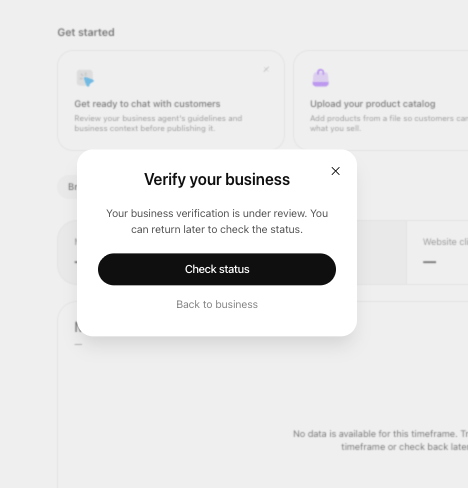
After submission, the claim may remain under review while OpenAI checks the information.
Step 6: Review and update your business information
After the required checks are approved, open your business profile in Business Hub.
Depending on the profile and available features, you may be able to update details such as:
- Business website
- Business description
- Business category
- Logo and cover image
- Products or services
- Delivery policy
- Return policy
- Product information and availability
Make sure that the details match the information on your website and other official business channels.
OpenAI’s policy says businesses must provide accurate information and must be the owner or an authorised representative. Do not add an address, service area, product, qualification or customer promise that does not accurately describe the business.
OpenAI may review submitted changes. Updates can take time to appear in a profile or in ChatGPT answers. ChatGPT may also use information from other sources.
What if your business is not listed?
Do not assume that every business can create a new profile.
OpenAI’s current Help Center describes a different route for eligible online businesses and local businesses:
- If you operate an eligible online business, you may see an option to add it.
- Local stores and restaurants can currently claim only an existing US listing.
- If a listing is locked, use the support option in Business Hub.
- If another person has already claimed your business, use the ownership dispute process and provide the requested proof.
For the online only route, see How to verify your online business on ChatGPT.
For physical locations, see How to verify your physical business on ChatGPT.
Common ChatGPT business verification problems
| Problem | What to check |
|---|---|
| Business does not appear in search | Check the business name and website. Confirm that the business type is eligible for the add business option |
| No website domain option | Use only the verification methods shown for your claim |
| TXT record is not detected | Check the host, value and DNS provider. Allow time for DNS changes to propagate |
| Business email code does not arrive | Check spam, mailbox access and whether the address matches the business details |
| Phone code does not arrive | Confirm that the number shown is correct and can receive the selected message or call |
| Claim is under review | Wait for OpenAI’s email. Respond if it requests additional information |
| Business is already claimed | Use the ownership dispute process rather than creating a duplicate |
| Persona verification is pending | Wait for the review decision before attempting features that require approval |
Does verifying a business improve its ChatGPT ranking?
No such guarantee has been announced.
Claiming a business allows eligible companies to manage information and, after the required checks, access certain features. OpenAI says claiming does not guarantee higher placement or sales.
ChatGPT continues to make independent recommendations and comparisons. A business should therefore treat verification as an information accuracy and profile management step, not as a shortcut to ranking first.
Keep your website useful, publish accurate product and service details, explain policies clearly and make it easy for customers to understand what the business offers.
Frequently asked questions
Is ChatGPT business verification free?
Check the current Business Hub process and any terms presented during signup. Do not assume that access to every related feature, such as advertising or Business Agents, is included with a business claim.
Can I verify my business on ChatGPT without a physical address?
Eligible online businesses may be able to add and claim a business without a customer facing physical store. The exact options depend on the business’s location, type and the verification methods shown in Business Hub.
Can I verify my business using only my website?
If the Website domain option is offered, you can verify control by adding the TXT record supplied by ChatGPT to your domain’s DNS settings. The process may still require further claim review or Persona identity verification.
Can I claim a business in India?
OpenAI says eligible businesses in locations where ChatGPT is available can claim a business, but eligibility depends on location, business type and verification support. Its current Help Center says local stores and restaurants can claim only an existing US listing. Online businesses should check whether the add business option is available to them.
Does a verified business get a blue tick immediately?
No. OpenAI says the blue check appears after the required Persona identity verification is approved. Claim submission alone does not provide the badge.
Can I create a Business Agent after verification?
Only if the business meets the separate Business Agent requirements. OpenAI currently describes Business Agents as available to eligible ecommerce and online service businesses in the United States. Business verification alone does not guarantee Agent eligibility.