

Sites built with JavaScript frameworks can rank well, but they add steps between a page and Google’s index. Google’s documentation, last updated in March 2026, explains those steps and the pitfalls. This guide turns it into four quick checks.
How Google processes JavaScript
Google says it handles JavaScript web apps in three phases: crawling, rendering and indexing. When Googlebot fetches a URL it first checks whether crawling is allowed by robots.txt, then parses the HTML for links. Googlebot queues pages with a 200 status code for rendering unless a robots meta tag or header says not to index them. A headless Chromium then runs the JavaScript, and Google parses the rendered HTML for links again and uses it to index the page. Rendering may wait a few seconds or longer. Pages with non-200 status codes may skip rendering.
Google adds that server-side or pre-rendering is still a great idea, because it makes a site faster for users and crawlers, and not all bots can run JavaScript.
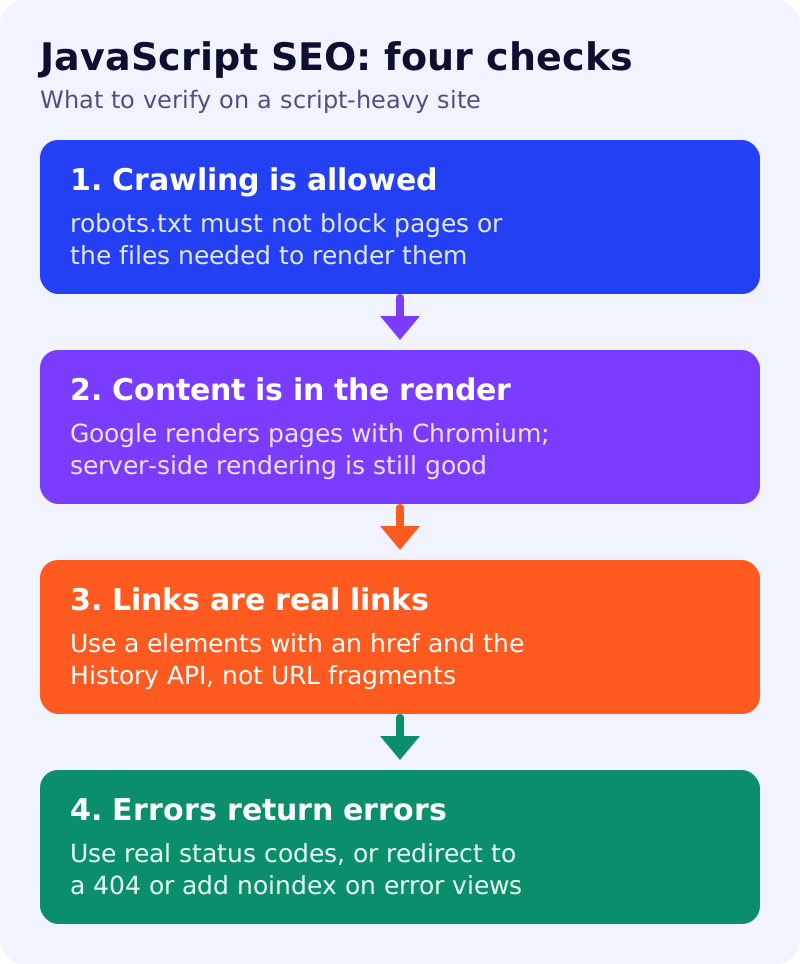
Check 1: crawling is allowed
Google will not render JavaScript from blocked files or on blocked pages. Open your robots.txt and make sure neither the pages nor the scripts they need are disallowed. See robots.txt for a blog.
Check 2: content and tags appear after rendering
Some sites use an app shell, where the first HTML has little content and Google must run JavaScript to see it. That works, but check the rendered HTML in Search Console’s URL Inspection tool. Google says JavaScript may set the title element and the meta description. For the canonical URL, the best way is HTML. If JavaScript is used, it must not change the canonical to something different from the original HTML. Our canonical URL guide covers the rules.
Check 3: links are real links
Google can only discover links that are a elements with an href attribute. It is fine to inject links with JavaScript if they follow the crawlable links best practices. For single-page apps, Google recommends the History API for routing instead of URL fragments. Its documentation shows #/products as a bad pattern and /products as the fix, because Googlebot cannot reliably resolve fragment URLs.
Check 4: errors return errors
Googlebot uses status codes to learn whether a page failed or moved. Client-side single-page apps often cannot return a 404, which creates soft 404 errors. Google gives two fixes. Redirect with JavaScript to a URL where the server returns 404, such as /not-found. Or add <meta name="robots" content="noindex"> to error views with JavaScript.
Test and troubleshoot
Google also advises using polyfills or differential serving when a needed browser API is missing, since it supports only some features. For specific failures, it points to a separate JavaScript troubleshooting guide. Lazy-loaded content that needs a user action is a known problem; see mobile-first indexing checklist.
What to do
- Test one key page in URL Inspection and read the rendered HTML.
- Check robots.txt for blocked scripts or pages.
- Audit navigation: every menu item should be an
aelement with a real path. - Test a made-up URL and confirm it returns a 404 or a noindex error view.
- Prefer server-side rendering for important pages if you can.
Source: Google Search Central documentation, as linked above.