

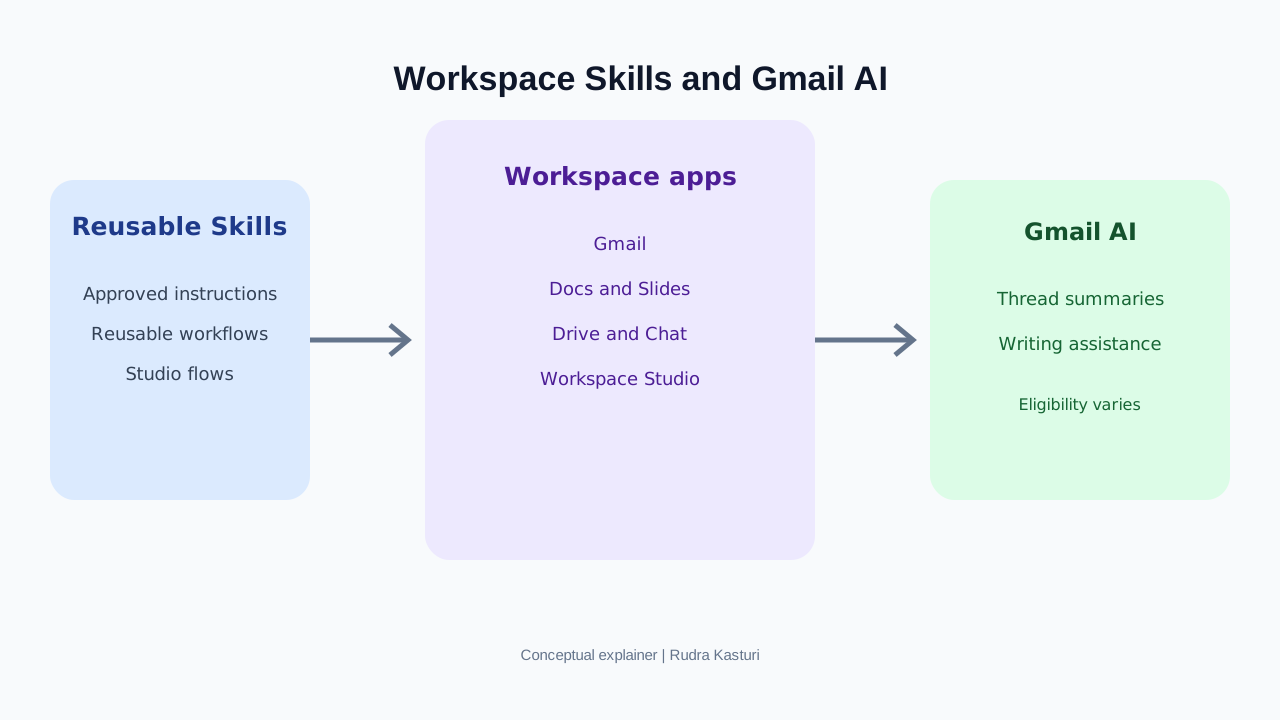
Google is bringing reusable Gemini Skills into everyday Workspace applications. The idea is simple but useful: teach Gemini how your team wants a task done once, save those instructions, and call them again when the same kind of work comes up.
Think about a sales manager who asks Gemini to summarise a customer call. The first time, the manager explains the format, the fields to capture, the tone and the follow-up rules. The next day, another call needs the same treatment. Without a reusable instruction, the manager repeats the explanation or pastes an old prompt.
A Skill is intended to remove that repetition. It can hold the team’s preferred process, structure, rules and reference material, so Gemini can apply them consistently when asked.
This is more useful than treating every AI interaction as a fresh chat.
1. What is a Gemini Skill in simple language?
A Skill is a saved set of instructions for a repeatable job.
It can tell Gemini:
- What role it should perform.
- What steps to follow.
- Which format to use.
- What tone or style to maintain.
- Which rules must never be broken.
- What information or reference files should guide the task.
For example, a marketing team could create a “Campaign Brief” Skill. Whenever someone invokes it, Gemini follows the team’s approved brief structure: objective, audience, insight, proposition, channels, budget, measurement and risks.
The user still provides the campaign details. The Skill provides the repeatable method.
A prompt tells AI what to do now. A Skill stores how a recurring task should be done.
2. What was the earlier way, and what is easier now?
Earlier, teams commonly used long prompts, saved documents, custom Gems or copied instructions from previous chats. These methods work, but they create friction.
| Earlier workflow | With Skills |
|---|---|
| Find and paste the old prompt | Invoke the saved Skill using / or @ |
| Explain the same brand rules repeatedly | Keep the rules in one reusable instruction set |
| Different employees use different prompts | Share a common starting process with the team |
| Copy output from one chat into another | Apply multiple Skills in the same task or conversation |
| Manually repeat a workflow | Connect Skills to Workspace Studio flows where appropriate |
This does not mean every task becomes automatic. A Skill guides Gemini. It does not independently guarantee correct facts, send an email or approve a business decision unless the connected workflow and permissions explicitly allow that action.
3. How do you actually use a Skill?
Google’s 10 November rollout announcement says Skills are rolling out across Workspace Studio and Workspace apps, including Gmail, Docs, Slides, Drive and Chat on the web. They are not yet available in Sheets or Meet, and Workspace Skills currently support English prompts and instructions only. The exact interface and availability can vary during rollout.
A practical starting process looks like this:
Step 1: Choose one repetitive task.
Do not begin by trying to automate an entire department. Pick a job that happens frequently and has a reasonably consistent output.
Examples:
- Convert meeting notes into action items.
- Draft a customer response using approved service rules.
- Turn a research document into a management summary.
- Prepare a weekly performance report.
- Create a first draft of a campaign brief.
Step 2: Write down the method.
Describe the inputs, steps, output format and rules. Include examples of good output if you have them. Be specific. “Write professionally” is weak guidance. “Use short paragraphs, state the customer’s issue first, give the next action and do not promise a refund unless the policy confirms eligibility” is much more useful.
Step 3: Create or edit the Skill.
Google says users can create Skills from scratch, start with templates and edit Markdown-native SKILL.md files in Workspace Studio. They can also draft and collaborate on Skills in Google Docs, or prompt Gemini in Gmail, Docs, Slides, Drive and Chat to create, refine and test them. Follow the current in-product creation flow available to your account.
Step 4: Test before sharing or using it widely.
Give the Skill three different examples: a normal case, an incomplete case and an unusual case. Check whether it follows the rules, asks for missing information and avoids inventing facts.
Step 5: Invoke it when needed.
Google says Gemini can automatically recognise an enabled Skill when it is relevant, or users can invoke one or more Skills explicitly with an @ mention. For example, a user might apply a “Meeting Summary” Skill and a “Project Status Report” Skill to turn a meeting transcript into a structured update. Users can create, test and share Skills from Workspace Studio, draft and collaborate on them in Google Docs, and create or refine them by prompting Gemini inside supported Workspace apps. A shared Skill is an independent copy: later edits by the original creator do not overwrite the recipient’s copy. If the Skill refers to Drive files, recipients also need permission to those files.
Step 6: Share and connect it to a workflow.
Workspace Studio supports sharing copies of Skills and connecting them to Studio flows. This is where a repeatable instruction can become part of a broader workflow. Test permissions and approval steps before using it for external communication.
4. Four useful examples a business can try
Example A: Sales call to CRM-ready follow-up
A sales team creates a Skill that reads call notes and produces:
- Customer’s problem and business context.
- Product or service discussed.
- Budget, timeline and decision-maker, only if stated.
- Objections and unanswered questions.
- Next action, owner and due date.
- A draft follow-up email.
The benefit is not merely faster writing. It is a more consistent handover between salespeople. The Skill must mark missing details instead of guessing them, and a salesperson should approve the email before it is sent.
Example B: Weekly marketing report
A marketing Skill can convert supplied campaign data into:
- Spend and delivery summary.
- Leads, conversions and cost per result.
- Changes compared with the previous period.
- Campaigns that improved or declined.
- Possible explanations clearly labelled as hypotheses.
- Actions for the next week.
This can reduce the time spent formatting reports. It cannot make incomplete tracking data reliable. The source spreadsheet remains the authority for the numbers.
Example C: HR job description and interview kit
An HR Skill can follow the company’s approved job description format, list essential and desirable skills, prepare structured interview questions and create a scorecard.
It should not infer a candidate’s personal characteristics or make an employment decision. The hiring team remains responsible for fair evaluation.
Example D: Customer support response
A support Skill can classify the issue, find the relevant policy supplied to it, draft a clear response and identify cases that need escalation.
It should not invent policy, disclose another customer’s information or promise a refund without checking eligibility.
5. What makes Skills different from Gems?
Google is transitioning from Gems to Skills over time. The change is not simply a renaming.
Google’s guidance describes Skills as reusable instructions that can work across the Gemini app, Workspace apps and Gemini Enterprise, with different availability by product and licence. Users can invoke Skills directly in chat, combine them and use the open Markdown-based SKILL.md format.
There is an important distinction during the transition: a Skill created in the Gemini app is not automatically available in Workspace or Gemini Enterprise. Google says users may need to create Skills separately in those environments. Remaining Gems in the Gemini app are expected to migrate to draft Skills in that app, not automatically into Workspace.
Google’s current timeline says business and enterprise Gems are not expected to be fully replaced before 1 March 2027, and education no sooner than 1 June 2027. These are future milestones, not an immediate shutdown.
6. Who can use them?
Google’s November 9 help guidance lists Skills in the Gemini app for all Google Workspace editions and users of all ages. Workspace app availability is more specific: it is listed for users aged 18 and older on Business Starter, Standard and Plus, Enterprise Standard and Plus, Google AI Pro for Education, or the AI Expanded Access add-on. Gemini Enterprise Skills require a Gemini Enterprise licence.
Rollout is gradual. If the feature is not visible in your account, check the edition, administrator settings and release schedule before assuming it is unavailable permanently.
7. What should a company create first?
Start with a small library, not hundreds of Skills.
| Team | First Skill to test | Measure |
|---|---|---|
| Sales | Call summary and follow-up draft | Time to prepare follow-up, missing fields |
| Marketing | Weekly campaign report | Report preparation time, correction rate |
| HR | Job description and interview kit | Time saved, consistency and review quality |
| Customer support | Policy-based response draft | Handling time, escalation accuracy |
| Leadership | Meeting notes to decision log | Action capture, ownership and completion |
A useful pilot has an owner, a clear input, a defined output and a human reviewer.
8. A simple way to measure whether a Skill is useful
Run the same type of task manually and with the Skill for two weeks. Record:
- Time taken per task before and after.
- Percentage of outputs accepted with minor edits.
- Number of factual or policy corrections required.
- Number of missing details correctly flagged.
- Whether the output follows the approved format.
- Whether the user actually adopts the Skill.
A proposed internal score out of 100 could assign 30 points to time saved, 30 to output quality, 20 to consistency and 20 to safe handling of exceptions. This is a suggested business measure, not a Google metric. A Skill that saves time but creates serious errors is not a successful Skill.
9. What about Gmail’s new AI features?
Google’s separate November 10 Gmail announcement expands certain Gemini features to more eligible Workspace users aged 18 and older. These include summaries at the top of long email conversations and non-personalised Help me write assistance. Availability, administrator controls and rollout timing differ from Skills.
The practical benefit is straightforward: a long email chain can be easier to understand, and a user can get help drafting a response. But a summary can miss nuance, and a draft can misread the relationship or context. Read the original thread before making a commitment.
Our recommendation
The best first use of Gemini Skills is not to build an impressive AI demonstration. It is to remove one irritating piece of repeated work.
Choose a task that happens every week, document how a good employee performs it, turn that method into a Skill, test it on real examples and measure whether the result is faster without becoming less reliable.
If a team can save 15 minutes on a recurring task across 20 employees, the value becomes visible quickly. But the real gain is consistency: people spend less time explaining the process and more time using the result.
Skills make AI instructions reusable. Good process design is still the work that makes them useful.