
A product page is where an AI answer ends and a purchase begins. Google and OpenAI give no shortcut to appear in their answers, but their documentation is clear about the basics.
Start with facts a shopper needs
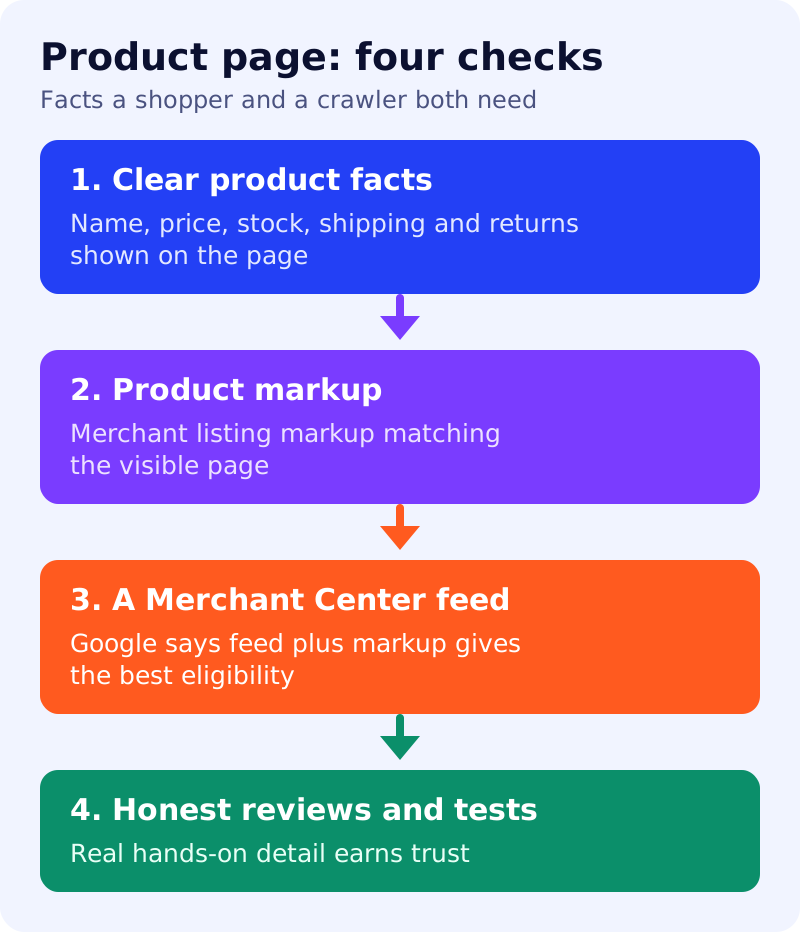
Google’s product documentation lists the details that can appear in search: price, availability, review ratings, shipping and returns. Put those facts on the page in plain text first, then mark them up.
Choose the right markup
Google describes two classes. Product snippets suit pages where people cannot buy directly. Merchant listings suit pages where customers can buy from you, with options for shipping, return policy and apparel sizing. If you sell variants, Google says variant markup helps it see which items belong to one parent product. Price drops are computed by Google by observing price changes over time and are not guaranteed to show.
Add a feed, and keep it matching
Google says providing both structured data and a Merchant Center feed maximises eligibility and helps it verify your data. For its AI features, it also suggests checking that Merchant Center information is current and that structured data matches the visible text. See our guide to AEO for e-commerce.
Earn trust with first-hand detail
Google’s helpful content guidance says that for product reviews, it builds trust when readers understand how many products were tested, what the results were and how the tests were run, with evidence such as photographs. Do not paste manufacturer text and call it a review.
Let the crawlers in
OpenAI’s crawler documentation says OAI-SearchBot is used to surface sites in ChatGPT’s search features and that sites opted out are not shown in its search answers. OpenAI recommends allowing it in robots.txt. We could not open that page directly, so confirm details there. See also our category page guide.
What to do
- Put price, stock, shipping and returns on the page in text.
- Add merchant listing markup that matches the page.
- Submit a feed and refresh it when prices change.
- Add real testing detail with your own photos.
- Check robots.txt for Googlebot and OAI-SearchBot.
Sources: Google Search Central and OpenAI documentation, as linked above.